

If you can connect to the SQL Server instance, run this read-only query to find its Database Engine error-log path:
SELECT SERVERPROPERTY('ErrorLogFileName') AS ErrorLogFileName;On Windows, if the instance will not start, open SQL Server Configuration Manager and read the -e startup parameter in the instance's properties. Newer versions use the Startup Parameters tab; older versions can show Startup Parameters under Advanced. Finding the path does not require changing a setting or restarting the service.
This is the Database Engine ERRORLOG, not the database's .ldf transaction log or SQL Server Agent's log. A custom installation can use a different path, so use the instance's actual setting rather than assuming the default folder.
4 step by step methods to find SQL Server error log location
You can check the SQL Server error log path in a few ways:
1. Using T-SQL
Use the direct read-only query first. If an older engine returns NULL for this property, use the log search or Windows methods below.
SELECT SERVERPROPERTY('ErrorLogFileName') AS ErrorLogFileName;You can also search the startup entry in the current Database Engine log:
USE master
GO

EXEC sys.xp_readerrorlog 0
	,--Value of error log file you want to read: 0 = current, 1 = Archive #1, 2 = Archive #2, etc...
	1
	,--Log file type: 1 or NULL = error log, 2 = SQL Agent log
	N'Logging SQL Server messages in file'
	,--Search string 1: String you want to find
	NULL
	,--Search string 2: String two you want to search for to further refine the results
	NULL
	,--Search from start time
	NULL
	,--Search to end time
	N'asc' --Sort order for results: N'asc' = ascending, N'desc' = descending
The result should be:
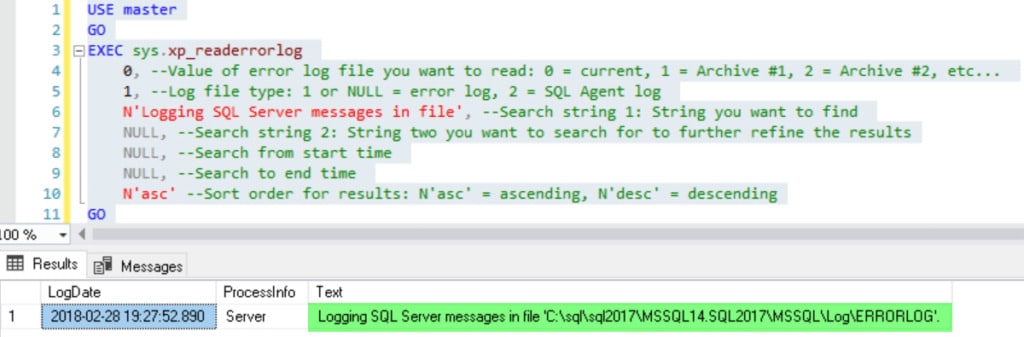
Log 0 is the current log. If it has been cycled since SQL Server started, the startup entry may be in a retained archive and this search can return no rows. Use the direct property query above, or search a retained archive by replacing 0 with its number. No rows does not mean the instance has no error log.
2. SQL Configuration Manager
These steps are for Windows. SQL Server Configuration Manager is an MMC snap-in and may not appear in Windows 11 Start search. Open the installed version directly from Start or Run:
- SQL Server 2025: SQLServerManager17.msc
- SQL Server 2022: SQLServerManager16.msc
- SQL Server 2019: SQLServerManager15.msc
- SQL Server 2017: SQLServerManager14.msc
- SQL Server 2016: SQLServerManager13.msc
- SQL Server 2014: SQLServerManager12.msc; SQL Server 2012: SQLServerManager11.msc
You can also look under Computer Management > Services and Applications. Use the snap-in installed for the SQL Server version you need to manage.
- Go to SQL Server Services
- Click on the SQL instance on the right (In my case it's “SQL2017”)
- Right-click, go to Properties
- Look for the Startup Parameters tab
Read the full path after -e in Existing Parameters. In older versions such as SQL Server 2008 R2, select Advanced > Startup Parameters and find -e in the semicolon-separated value; the other parameters are not the error-log location. Do not edit -d or -l.
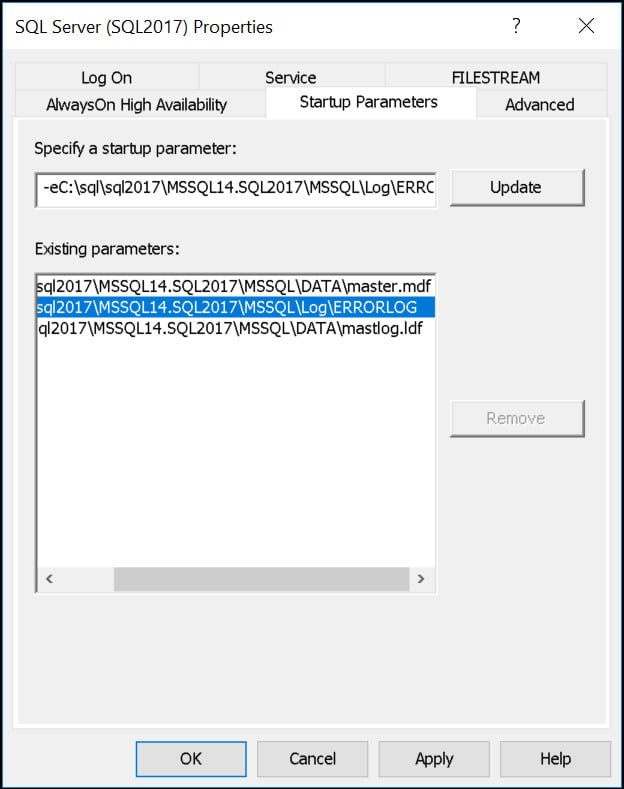
This example shows a Windows SQL Server logs folder. Your instance ID, version and installation drive can differ; use the actual -e value rather than copying a screenshot's path.
On Linux, the default Database Engine file is /var/opt/mssql/log/errorlog. Use T-SQL when you can connect, or inspect that file on the Linux host with authorized filesystem access. Configuration Manager, Windows Event Viewer and the Windows registry are Windows-only. On Windows the current file is normally ERRORLOG and numbered files such as ERRORLOG.1 are archives. Custom paths can differ.
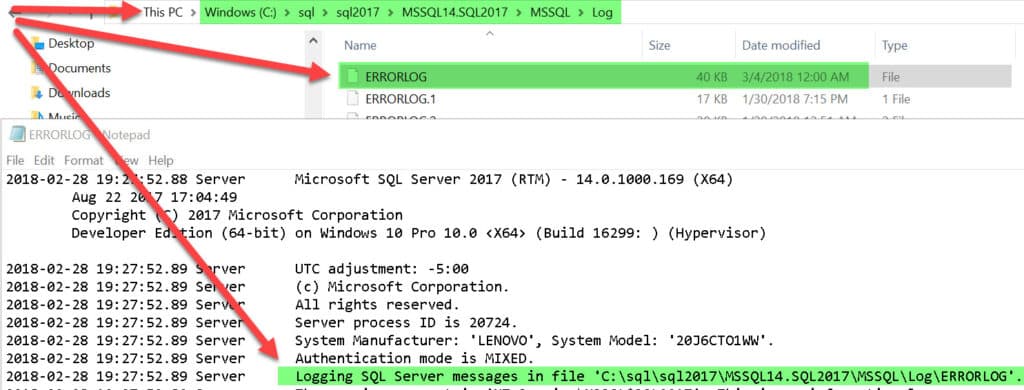
3. Using Event Viewer
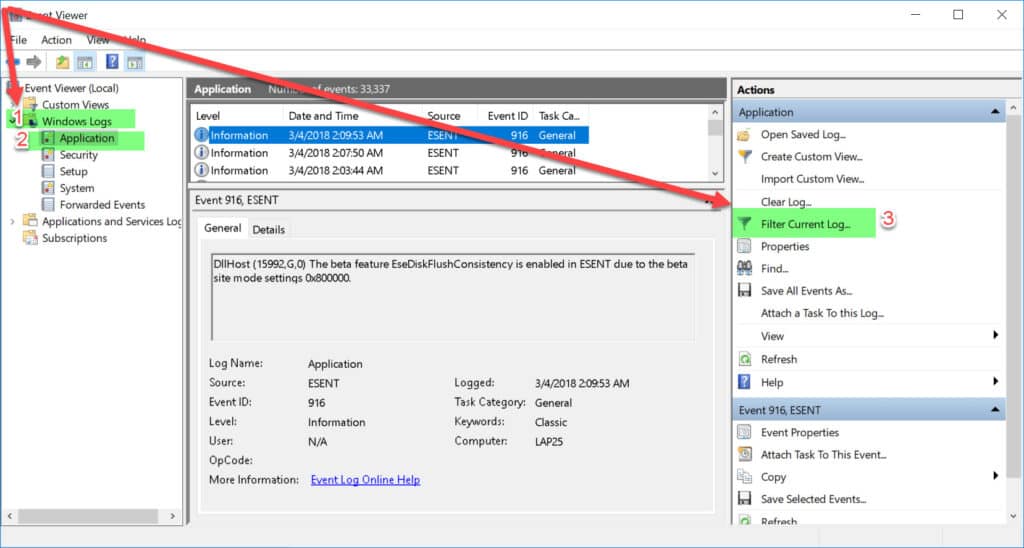
Start the Event Viewer (you can use the search box near the Start button).
- Click on the Windows Logs > Application > Filter Current Log
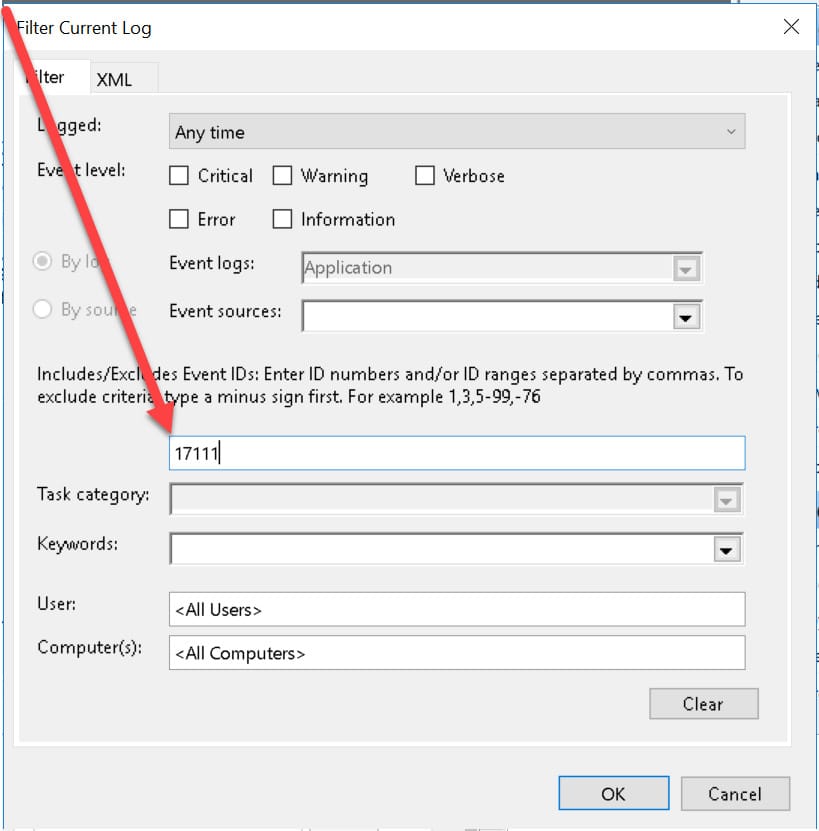
- Replace <All Event IDs> with EventID 17111 and hit OK.
Look for event 17111 from the relevant MSSQLSERVER or MSSQL$instance source. It is available only while the Application log retains the startup event; rollover or clearing can remove it. Use another method if the event is missing.
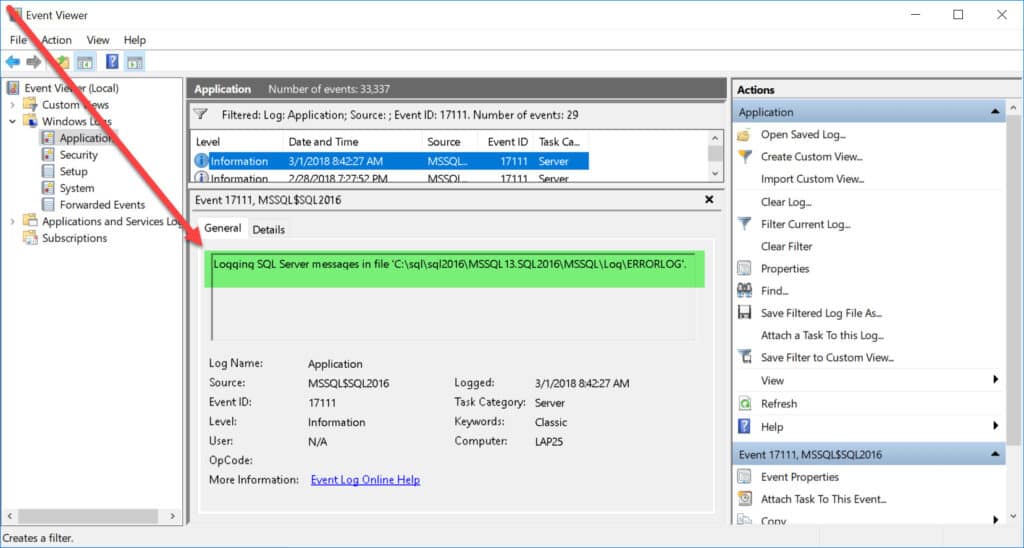
For a read-only PowerShell equivalent on Windows, the following lists the newest retained event 17111 for each SQL Server event source. No output can mean the startup event is no longer retained. This example suppresses query errors; if access is denied, check your approved event-log permissions instead of treating empty output as proof of no log.
Get-WinEvent -FilterHashtable @{LogName='Application'; Id=17111} -ErrorAction SilentlyContinue |
  Where-Object ProviderName -like 'MSSQL*' |
  Sort-Object TimeCreated -Descending |
  Group-Object ProviderName |
  ForEach-Object { $_.Group[0] } |
  Select-Object TimeCreated, @{n='Instance';e={$_.ProviderName}}, @{n='ErrorLogPath';e={$_.Properties[0].Value}} |
  Format-Table -AutoSize
4. Using registry
Use an authorized Windows account and open Registry Editor with Run as administrator if needed for access. Read settings only; do not change registry values to locate the file. Resolve the instance ID from this key:
HKEY_LOCAL_MACHINE\SOFTWARE\Microsoft\Microsoft SQL Server\Instance Names\SQLThen open the matching instance's Parameters key and read the SQLArg value whose data starts with -e:
HKEY_LOCAL_MACHINE\SOFTWARE\Microsoft\Microsoft SQL Server\<InstanceID>\MSSQLServer\ParametersReplace <InstanceID> with the mapped ID, for example MSSQL15.MSSQLSERVER. It is not always the friendly instance name. The path is the value after -e; SQLArg1 is common, but inspect the value rather than assuming its number. Elevation does not grant permissions your account is not authorized to use.
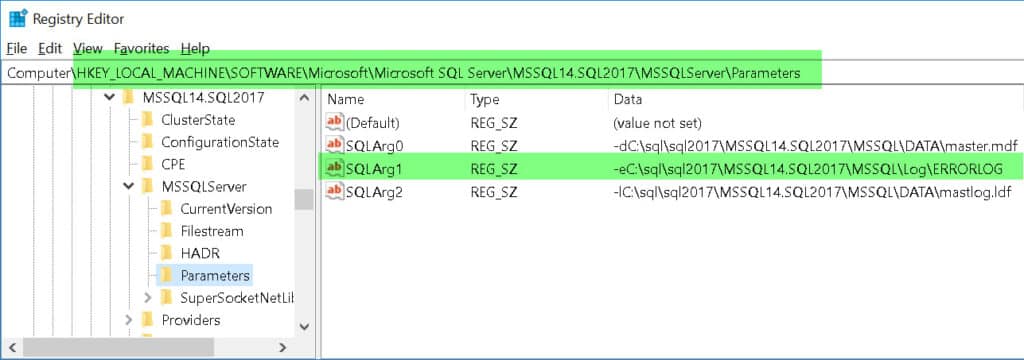
A read-only PowerShell alternative lists the -e settings of local instances registered in the 64-bit registry view. Run 64-bit Windows PowerShell as administrator with an authorized account. It reads the 64-bit registry view and reports an inaccessible or unexpected instance instead of changing it:
$isAdmin = ([Security.Principal.WindowsPrincipal][Security.Principal.WindowsIdentity]::GetCurrent()).IsInRole([Security.Principal.WindowsBuiltInRole]::Administrator)
if (-not $isAdmin) { throw 'Run from an elevated Windows PowerShell session.' }

$root = 'HKLM:\SOFTWARE\Microsoft\Microsoft SQL Server'
$names = Get-ItemProperty "$root\Instance Names\SQL" -ErrorAction Stop
$names.PSObject.Properties |
  Where-Object { $_.Name -notin @('PSPath','PSParentPath','PSChildName','PSDrive','PSProvider') } |
  ForEach-Object {
    $instance = $_.Name
    $instanceId = $_.Value
    try {
      $params = Get-ItemProperty "$root\$instanceId\MSSQLServer\Parameters" -ErrorAction Stop
      $eArgs = @($params.PSObject.Properties |
        Where-Object { $_.Name -like 'SQLArg*' -and $_.Value -like '-e*' })
      if ($eArgs.Count -ne 1) { throw 'Expected one -e startup parameter.' }
      [pscustomobject]@{
        Instance = $instance
        InstanceId = $instanceId
        ErrorLogPath = ([string]$eArgs[0].Value).Substring(2)
      }
    } catch {
      Write-Warning "$instance : $($_.Exception.Message)"
    }
  } | Format-Table -AutoSize
The methods above only locate the log. Stop here if that is all you need. The optional instructions below change where logs are written. Before any change, record the previous setting, confirm the destination folder exists and the SQL Server service account can create and write files there, and arrange a maintenance window. A wrong path or missing permission can prevent startup.
On Windows, use SQL Server Configuration Manager to update only -e to the approved full error-log file path. Keep the old value for recovery and leave -d and -l unchanged.
Restart the Database Engine in the agreed maintenance window, then confirm the service is running and the direct query shows the intended path.
A message such as 'The request failed or the service did not respond in a timely fashion' is not expected success. If startup fails after changing -e, check the new path and service-account permissions, restore the previous -e value and try starting the service again. A timeout can have other causes; if restoring the setting does not fix it, inspect Windows startup events and investigate the underlying error. Do not leave the instance down assuming the error is normal.
For a systemd-managed SQL Server installation on Linux, use mssql-conf instead. After recording the existing path and checking the destination and permissions, replace this example with the approved full path. This setting also changes the default directory for new default-trace, System Health XE and Hekaton XE files. Check those outputs as well. The restart interrupts database access:
sudo /opt/mssql/bin/mssql-conf set filelocation.errorlogfile '/var/opt/mssql/custom-log/errorlog'
sudo systemctl restart mssql-server
Verify service health and the resulting file after the restart. If it fails, restore the previous configured error-log path and investigate permissions and startup logs. For containers, use the container's supported configuration and restart procedure instead of assuming systemctl is available.
SQL Server Agent has a separate log. In SSMS on Windows, right-click SQL Server Agent > Properties > General and read the error log file name. SQL Server Express does not include SQL Server Agent.
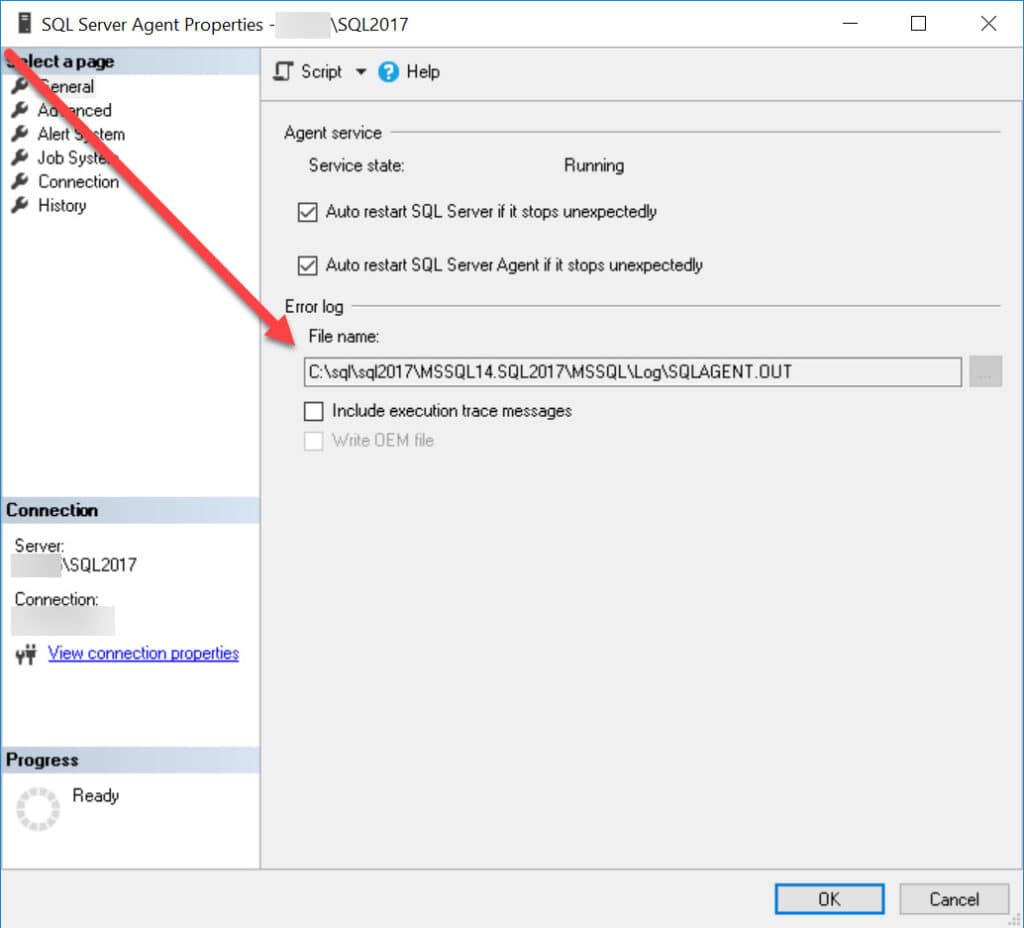
To change the Agent log path on Windows, first check the destination folder and the Agent service account's write permission. Replace the placeholder below with the approved full path and run with an account authorized to change Agent settings:
USE msdb;
GO

EXEC msdb.dbo.sp_set_sqlagent_properties
    @errorlog_file = N'<New_Errorlog_Path>\SQLAGENT.OUT';
GO
Restart SQL Server Agent for the new Agent log setting to apply, then verify the file is being written. This is an Agent restart, not a Database Engine restart; plan for any effect on running jobs.
On Linux, the usual Agent log is /var/opt/mssql/log/sqlagent.out. Its path can be changed with mssql-conf's sqlagent.errorlogfile setting; verify the actual configured path. Follow the Linux service restart procedure for your installation rather than treating the Windows Agent procedure as universal.
When reviewing SQL Server, checking the error log is one of the first things I do.
It often has a lot of good info!