

TL;DR
First inspect Query Store in the intended user database. To enable it without replacing its storage or retention policy, set Operation Mode (Requested) to Read Write in SSMS, or use the enable-only statement below. Review configuration changes separately.
- Query Store is available in SQL Server 2016 and later. Use a current SSMS release.
- Persisted history remains after a restart, but a crash can lose recent data still in memory.
- Never lower a storage cap or shorten retention by blindly copying an example.
What is the SQL Query Store?
Query Store records query plans and runtime statistics so you can compare performance over time.
Why should I enable Query Store?
Query Store keeps performance history in the database. Unlike transient plan-cache DMVs, persisted Query Store history can help you investigate an issue after a restart. The default flush interval is 900 seconds. A crash can lose unflushed data; that interval is not a durability guarantee.
Start with Query Store's built-in Top Resource Consuming Queries and Regressed Queries reports. Review expensive or regressed queries before deciding what to tune.
How do I turn on the Query Store?
Use a user database, not master or tempdb. Changing Query Store requires ALTER permission on that database; db_owner or sysadmin also has it. The inspection view requires VIEW DATABASE STATE on SQL Server 2016-2019, or VIEW DATABASE PERFORMANCE STATE or a greater permission on SQL Server 2022 and later. Updating SSMS does not upgrade the Database Engine.
Query Store is on by default for new SQL Server 2022+ databases and new Azure SQL Database and Managed Instance databases. Restored databases and databases upgraded to SQL Server 2022 retain their previous Query Store settings. Check the actual setting instead of assuming it is on.
Before either method, replace every YourDatabase placeholder with your database name. In SSMS, run this inspection query and read the result before changing anything. For Azure SQL Database, connect directly to the intended database rather than using USE to switch between databases.
USE [YourDatabase];
GO

IF DB_NAME() <> N'YourDatabase'
    THROW 50001, 'Connect to the intended user database before continuing.', 1;

SELECT DB_NAME() AS database_name,
       actual_state_desc,
       desired_state_desc,
       readonly_reason,
       current_storage_size_mb,
       max_storage_size_mb,
       query_capture_mode_desc,
       size_based_cleanup_mode_desc,
       stale_query_threshold_days,
       flush_interval_seconds
FROM sys.database_query_store_options;
Never set MAX_STORAGE_SIZE_MB below current_storage_size_mb. Preserve a larger existing cap and leave headroom. AUTO cleanup can remove older, less costly queries as the store approaches its cap; with cleanup off, reaching the cap can stop collection. Shorter retention can remove history too. Neither cleanup nor a configuration change is a promise to preserve all history.
In SSMS, use these three steps after inspection:
- In Object Explorer, right-click the intended database and select Properties.
- Select Query Store and set Operation Mode (Requested) to Read Write. For enable-only, retain the other settings. If applying the optional example profile below, review these fields on the same page first:
- Max Size (MB): 1,024 only if this does not lower the existing cap or fall below current usage; choose suitable headroom.
- Query Store Capture Mode: Auto. Preserve a current Custom or None mode unless your DBA intends to change it. Auto filters new-query capture; it does not capture every query.
- Size Based Cleanup Mode: Auto only after accepting its history-cleanup behavior. Do not silently replace an intentional Off policy.
- Stale Query Threshold: 30 days only if the current value is between 1 and 30. A value of 0 disables time-based cleanup; preserve 0 and any longer retention value. Do not select Purge Query Data.
- Select OK. Rerun the inspection query in the same database, then check the Query Store reports after a representative workload has run.
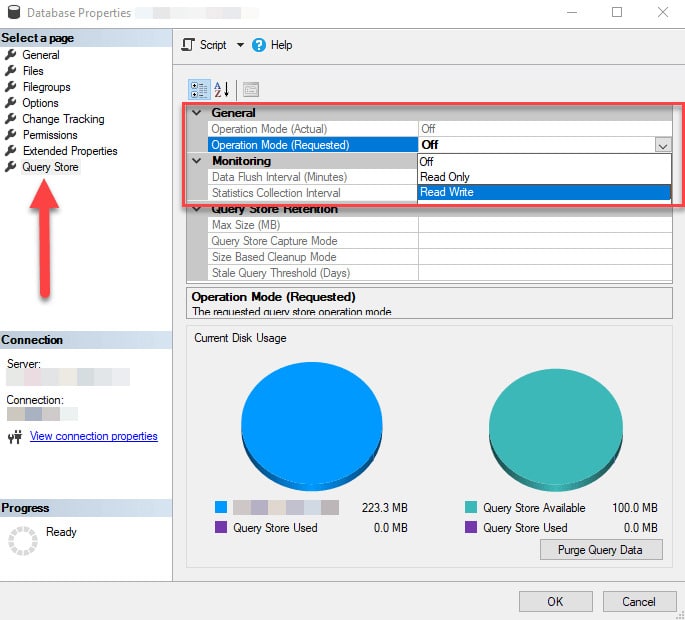
SQL Server 2016/2017 defaults are 100 MB and capture mode ALL; SQL Server 2019+ defaults are 1,000 MB and AUTO. Changing only Operation Mode does not apply a configuration profile. Read the actual values on your instance. Azure SQL defaults and limits are product-specific.
T-SQL enable-only changes Operation Mode while leaving size, capture, cleanup and retention settings as they are. This is the equivalent of the enable-only SSMS path:
-- Run the inspection file first and review its output.
USE [YourDatabase];
GO

IF DB_NAME() <> N'YourDatabase'
    THROW 50001, 'Connect to the intended user database before continuing.', 1;

ALTER DATABASE [YourDatabase]
SET QUERY_STORE = ON (OPERATION_MODE = READ_WRITE);
Optional configuration profile: the following SQL Server example matches the SSMS profile above. It refuses to shrink an existing size cap or retention period, refuses to turn an intentional cleanup-off policy on, and preserves Custom or None capture policies. If it stops, preserve your existing settings and have your DBA choose an appropriate profile. Test the exact revised script outside production before applying it.
-- Optional example profile: 1,024 MB, AUTO capture/cleanup, 30 days.
-- Run only after reviewing the inspection query and approving these policies.
USE [YourDatabase];
GO

IF DB_NAME() <> N'YourDatabase'
    THROW 50001, 'Connect to the intended user database before continuing.', 1;

IF NOT EXISTS (SELECT 1 FROM sys.database_query_store_options)
    THROW 50002, 'Query Store settings are unavailable. Stop and investigate.', 1;

IF EXISTS (
    SELECT 1
    FROM sys.database_query_store_options
    WHERE current_storage_size_mb > 1024
       OR max_storage_size_mb > 1024
       OR stale_query_threshold_days > 30
       OR stale_query_threshold_days = 0
       OR size_based_cleanup_mode <> 1
       OR query_capture_mode NOT IN (1, 2)
       OR current_storage_size_mb IS NULL
       OR max_storage_size_mb IS NULL
       OR stale_query_threshold_days IS NULL
       OR size_based_cleanup_mode IS NULL
       OR query_capture_mode IS NULL
)
    THROW 50003, 'This example would shrink size or retention, replace capture/cleanup policy, or use missing settings. Preserve existing settings and ask your DBA.', 1;

ALTER DATABASE [YourDatabase]
SET QUERY_STORE = ON (
    OPERATION_MODE = READ_WRITE,
    MAX_STORAGE_SIZE_MB = 1024,
    QUERY_CAPTURE_MODE = AUTO,
    SIZE_BASED_CLEANUP_MODE = AUTO,
    CLEANUP_POLICY = (STALE_QUERY_THRESHOLD_DAYS = 30)
);
Choose SQL Server storage for the workload. Azure SQL Database caps MAX_STORAGE_SIZE_MB at 10,240 MB. If you need around 10 GB or more, review capture mode and plan reuse first; check the separate product documentation for Managed Instance limits.
Do not enable trace flags 7752 and 7745 as routine setup. Trace flag 7752 has no effect on SQL Server 2019 and later. Trace flag 7745 skips flushing on shutdown or failover and can lose recent Query Store history. Assess the tradeoff for your version and workload.
After either path, rerun the inspection query. actual_state_desc = READ_WRITE means collection is allowed, not that useful workload data has been captured. If the actual state is READ_ONLY, inspect readonly_reason; 65536 indicates the size quota. If size quota is the cause, choose a larger MAX_STORAGE_SIZE_MB above current usage with headroom, preserve cleanup and retention policies, then request READ_WRITE again. This avoids deliberately purging history, but does not stop normal cleanup or recover already deleted history. Turning cleanup on can remove queries. Then verify that the built-in reports show queries and runtime statistics for the workload.
Query Store gives you the data; someone still has to act on it every month. Under Red9's SQL managed services, senior DBAs review Query Store trends and tune the top offenders as part of monthly optimization.